
Use the tool directly → Image Resizer
Have you ever tried to upload a photo to a website, only to get that annoying error message: “File size too large”? Or maybe you tried to email a few vacation photos to a friend, but the attachment took forever to load?
We have all been there. High-quality cameras on our phones are great, but they create massive image files that are often too big for the web, email, or social media.
The solution isn’t to delete your photos—it’s to resize them.
If you aren’t a tech expert, don’t worry. You don’t need expensive software like Photoshop to fix this. In this guide, we will show you exactly how to resize images online for free using simple tools that keep your photos looking sharp.
What Does “Resizing an Image” Actually Mean?
Before we jump into the “how-to,” let’s clarify what we are actually doing.
Resizing means changing the dimensions of your image (the Width and Height in pixels).
- Original Image: Might be 4000 x 3000 pixels (Huge! Good for printing posters).
- Resized Image: Might be 1200 x 800 pixels (Perfect for a blog post or Instagram).
When you reduce the pixel dimensions, you also significantly reduce the file size (megabytes), making the image faster to upload and easier to share.
![Hero Image: A split-screen comparison showing a ‘Heavy/Slow’ file vs a ‘Light/Fast’ resized file]

Why You Need This Tool in Daily Life
You might think, “Why can’t I just use the original photo?” Here is why resizing is essential:
- Website Speed: If you run a blog or website, huge images will slow your page down. Google hates slow sites, and so do visitors. Resizing improves your SEO.
- Social Media Rules: Instagram, Facebook, and Twitter have specific size requirements. If your image is the wrong shape or size, they will crop it awkwardly.
- Email Attachments: Most email providers have a limit (usually 25MB). Resizing your photos ensures you can send that family album without bouncing back.
- Application Forms: applying for a job or a visa online? They almost always require your headshot to be under a specific size (e.g., “Under 2MB”).
Step-by-Step Guide: How to Resize Images on ConvertioHub
Ready to make your images manageable? It takes less than 30 seconds.
Step 1: Open the Image Resizer
Go to the ConvertioHub Image Resizer. This tool is browser-based, so it works on your phone or computer.
Step 2: Upload Your Photo
Click the “Select Image” button or drag and drop your file into the box. We support common formats like JPG, PNG, and GIF.
Step 3: Choose Your New Dimensions
You will see options to change the Width and Height.
- Tip: Ensure the “Lock Aspect Ratio” box is checked. This stops your image from looking squashed or stretched.
- Enter your desired width (e.g., 1080px for Instagram or 1920px for a desktop wallpaper).
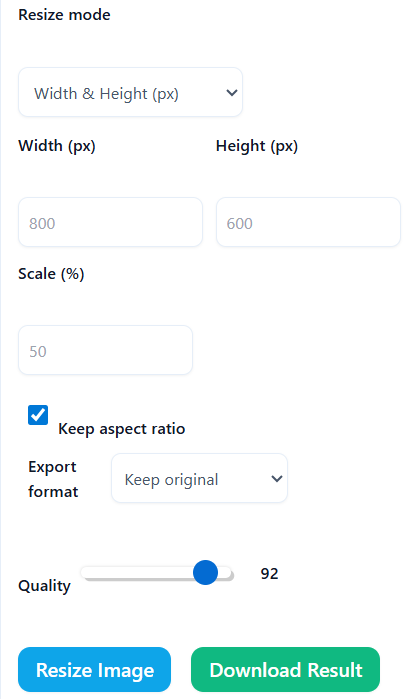
Step 4: Resize and Download
Click the “Resize Image” button. The tool will process it instantly. Click “Download” to save the new, lighter version to your device.
Benefits of Using an Online Resizer vs. Software
Why use ConvertioHub instead of desktop software?
- It’s Fast & Free: No credit cards, no accounts, no waiting.
- No Downloads: Save your hard drive space. You don’t need to install heavy apps just to shrink a photo.
- Privacy First: Your images are processed securely and aren’t stored on our servers permanently.
- Mobile Friendly: You can resize a selfie directly on your iPhone or Android before uploading it to social media.
Frequently Asked Questions (FAQs)
1. Will resizing my image make it blurry?
If you make an image smaller (downscaling), it will generally stay very sharp. However, if you try to make a small image bigger (upscaling), it may become pixelated or blurry because you are stretching the data.
2. What is the best size for website images?
For a full-width blog image, a width of 1200px to 1920px is usually perfect. For a thumbnail, 300px to 500px works well.
3. Does this tool crop my image?
No. Resizing changes the scale of the whole image. Cropping cuts parts of the image out. Our tool resizes the entire picture so you don’t lose any content.
4. Can I resize multiple images at once?
Currently, for the best quality control, we recommend resizing images one by one to ensure the dimensions are perfect for each unique photo.
5. Is it free to resize images online?
Yes! The ConvertioHub Image Resizer is 100% free to use as many times as you need.
Conclusion
Don’t let large file sizes slow you down or stop you from sharing your content. Whether you are optimizing a website or just trying to email a photo to your mom, resizing is a simple skill that solves big problems.
Stop struggling with “File Too Large” errors. Get your images to the perfect size in seconds.
Ready to optimize your photos?
👉 Click here to Resize Images Online for Free on ConvertioHub!